
Greetings and salutations everybody!
I am hopeful that the below is an accurate account of how I got my current Fediverse instance up and running
These instructions assume you have a basic install of Debian without a webserver installed but with sudo, ssh access and ports 80 and 443 open with a domain or subdomain pointed to the server.
First update the sever with sudo apt update && sudo apt upgrade then we will install caddy sudo apt install caddy
We then need to add the bookworm backports by creating and editing a file at /etc/apt/sources.list.d/ I will call it backports.list, use your favorite editor to do this nano/etc/apt/sources.list.d/backports.list
add the following lines
deb http://deb.debian.org/debian bookworm-backports main contrib non-free-firmware
deb-src http://deb.debian.org/debian bookworm-backports main contrib non-free-firmware
And save
Then refresh the package lists with sudo apt update and install snac2 with sudo apt install snac2 -t bookworm-backports
Now both packages are installed its time to stitch them together.
edit the caddyfile with sudo nano /etc/caddy/Caddyfile and change the file to look like this
your_instance_domain {
       # Set this path to your site's directory.
       root * /usr/share/caddy

       # Enable the static file server.
       file_server

       # Another common task is to set up a reverse proxy:
       reverse_proxy localhost:8001

       # Or serve a PHP site through php-fpm:
       # php_fastcgi localhost:9000
}
and save
Then we need to prepare Snac2
Edit the server json sudo nano/var/lib/snac2/server.json
and change "host": "localhost" to "host": "your_instance_domain"
and restart Snac2 with sudo systemctl restart snac2
Then use the wizard to add a Snac2 user with sudo -u debian-snac -- snac adduser /var/lib/snac2
the wizard will prompt for some information
Network address: 127.0.0.1
Host name: the URL of your Snac2 instance
URL prefix: The default for the Debian package is /social (i suspect this could be left blank
Admin email address: Use an account you have access to (or leave blank) and add “disable_email_notifications”: true to /var/lib/snac2/server.json
You will then be provided with an initial password for your user (keep it safe)
Restart the snac2 service and reload caddy.
sudo systemctl restart snac2 && sudo systemctl reload caddy
Then visit your servers url and select your user from the user list as seen below
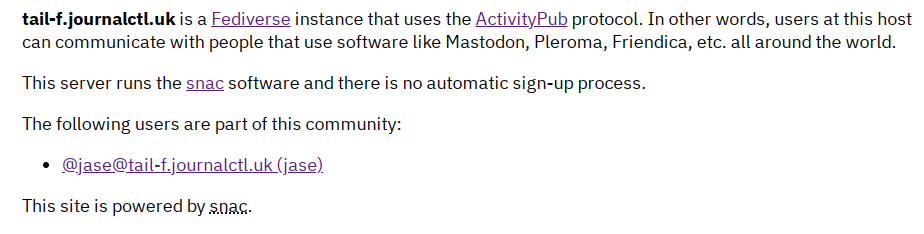
After clicking the user click the private link and log in using the password.
You can easily use a style CSS file to change the look and feel of your instance. see this project link for some examples